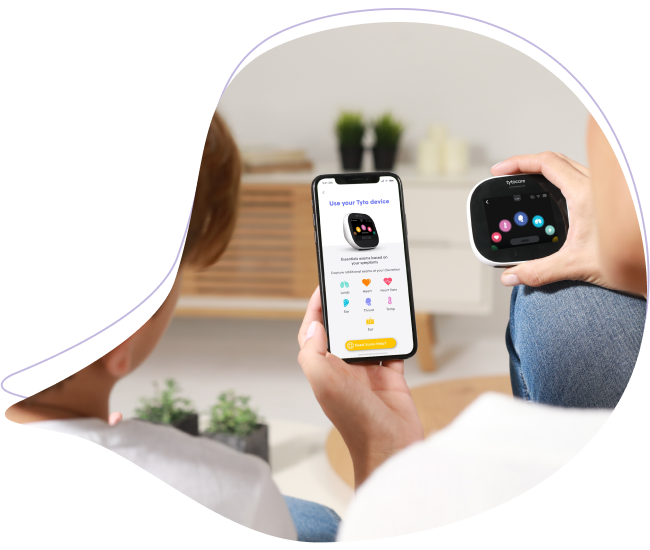
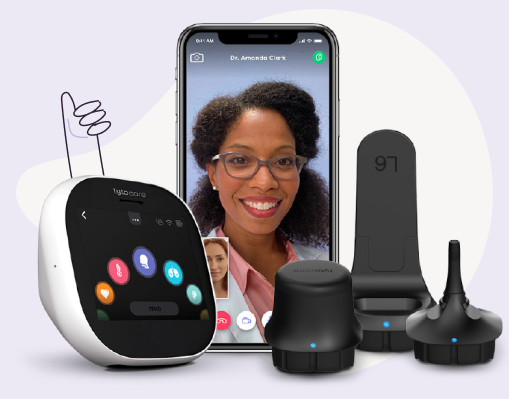
This guide explains how to perform an Exam and Forward (offline) visit. This allows you to record medical exams at your convenience and send them to a clinician for review at a later time.
Note: If you are associated with a specific healthcare organization, please contact them directly for their specific offline visit protocols.
To watch this on YouTube, press CTRL + Click the YouTube logo.
Step-by-Step Instructions
- Preparation: Log into the TytoCare App and power on your TytoCare Device. Ensure they are paired.
- Select Patient: Tap Start in the app and choose the family member being examined.
- Choose Visit Type: Select Exam and Forward from the telehealth visit options.
- Conduct Exams: Follow the on-screen instructions on both the device and app to perform your desired exams (Ear, Throat, Heart, etc.).
- Submit to App: Once exams are recorded, press Submit on the Tyto device to transfer the data to your smartphone or tablet.
- Review: In the app, tap each exam line to review the quality. You can delete and retake any exam if the image or sound is unclear.
- Send to Clinician: Press Finish Exam, then tap Send to Clinician.
*Note: To discuss these results immediately, you may choose "See a Clinician Online" instead.
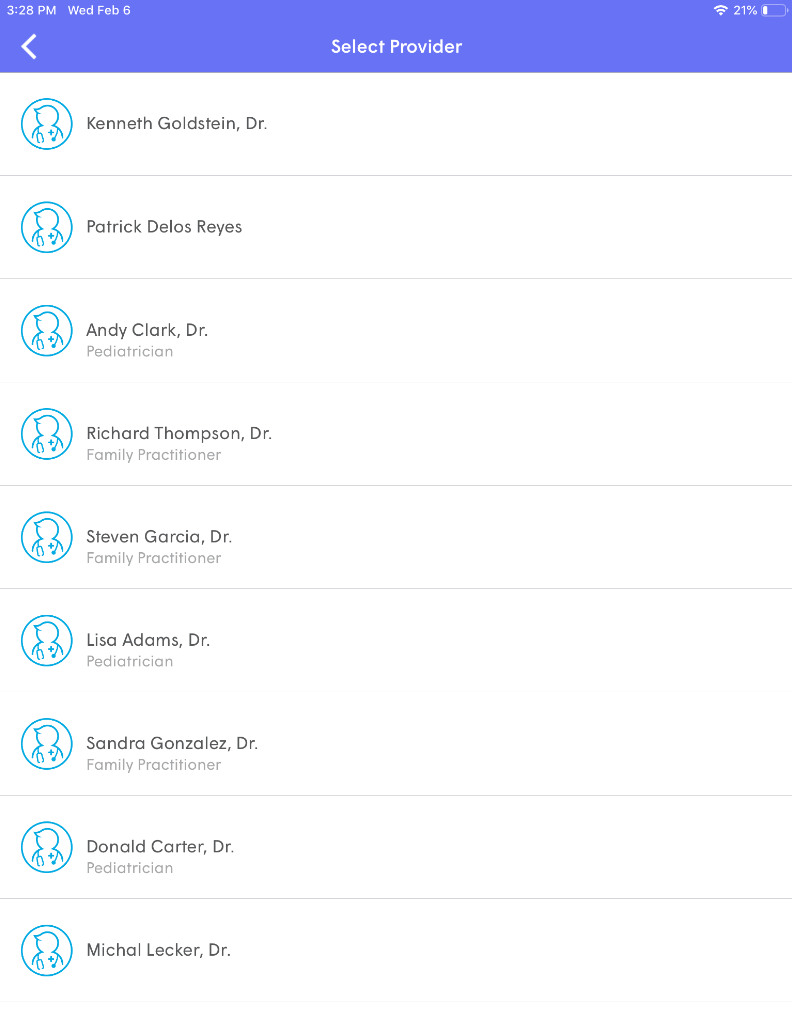
- Select Provider: Choose the specific clinician or organization you want to review the recordings.
- Add Symptoms: Complete the short symptom questionnaire to provide the clinician with clinical context.
What Happens Next? You will receive a push notification once the clinician has reviewed your exams. You can find their diagnosis and notes in the Patient History section of your app.