PTZ – TytoCare Setup Instructions
One pager with QR: 701-00084 A01
Setup Guide: 760-00739 A01
Support Models: 500-00032
Last updated: May 7, 2026
Overview
This guide explains how to configure a PTZOptics Move SE 12X camera for use with the TytoCare platform. It includes:
- Physical connection setup
- Network configuration
- User access configuration
- HTTPS certificate installation
- TytoCare Admin Portal configuration
1. Connect iPad to the Camera (USB-to-Ethernet Adapter)
1.1 Connect network hardware
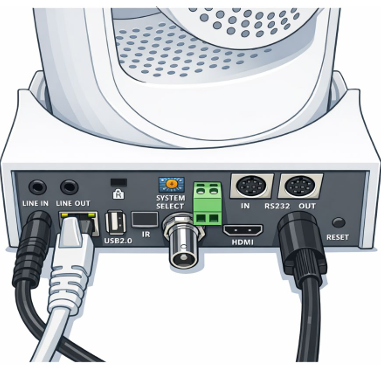
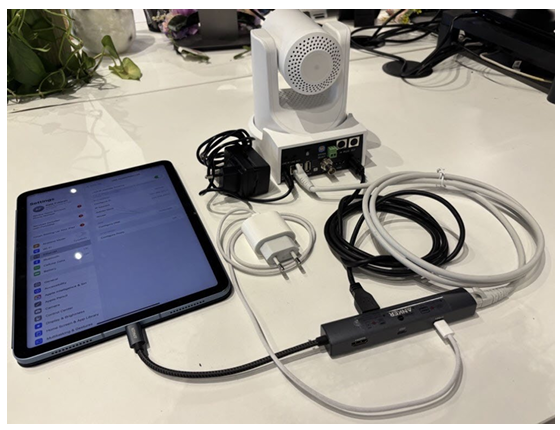
- Connect the camera Ethernet port directly to the USB-to-Ethernet adapter.
(NOTE:RJ-45 cable is not included) - Plug the USB-to-Ethernet adapter into the iPad (USB-C)..
- Connect a USB-C cable from the camera to the adapter
1.2 Verify Ethernet connection on iPad
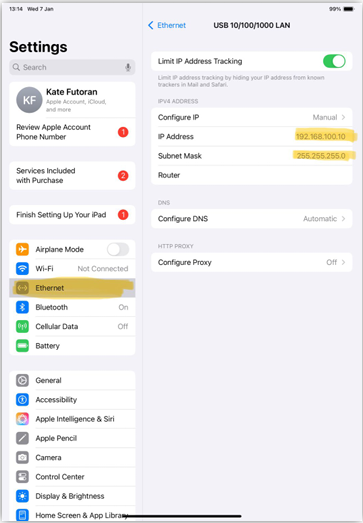
1. On iPad: Settings → Ethernet – verify the adapter is detected.
1.3 Configure IP (if needed) and access camera UI
- 1.Configure IP address settings if needed (set Manual IP on the same subnet as the camera). Example: 192.168.100.x / 255.255.255.0.
- 2. Open Safari on iPad and browse to: http://ptzoptics.local
2. Set Admin Password and Create Guest User (Read-Only / Limited Access)
- On first login set admin Password
- Open the camera Web UI and login as admin.
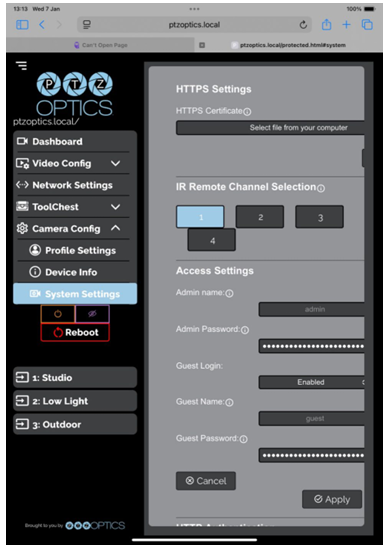
- Navigate to: Camera Config → System Settings → Access Settings.
- Set Guest Login to: Enabled
- Set Guest Name (e.g., guest) and define a strong Guest Password.
- Click Apply / Save.
- Test the guest account by opening a private/incognito browser session and logging in as guest.
3. Upload HTTPS Certificate (TLS)
- Open the camera Web UI: http://ptzoptics.local/
- Login using an administrator account.
- Navigate to: Camera Config → System Settings → HTTPS Settings.
- Click Select file from your computer and upload the HTTPS certificate file (CRT/PEM, provided by TytoCare).
- Click Apply / Save. Allow the PTZ camera to reboot
- Reconnect using HTTPS: https://ptzoptics.local/
Tips
- Use bundle certificate (pem).
- Transfer pem file to the iPad.
- If the iPad refuses the file, change the extension during transfer.
4. Configure Tyto Admin Console
- Go to Admin portal → System Parameters.
- Set parameter: PTZ camera username to guest.
- Set parameter: PTZ camera password to the password you set for the guest user.