TytoCare Order with PO Process
Overview
This is the new order system designed to guide you through the step-by-step process of placing orders via the website and using PO billing.
This guide will walk you through
- How to Sign In
- Placing an order through the website
- Requesting a quote
- Uploadinng a Signed Quote
Step 1
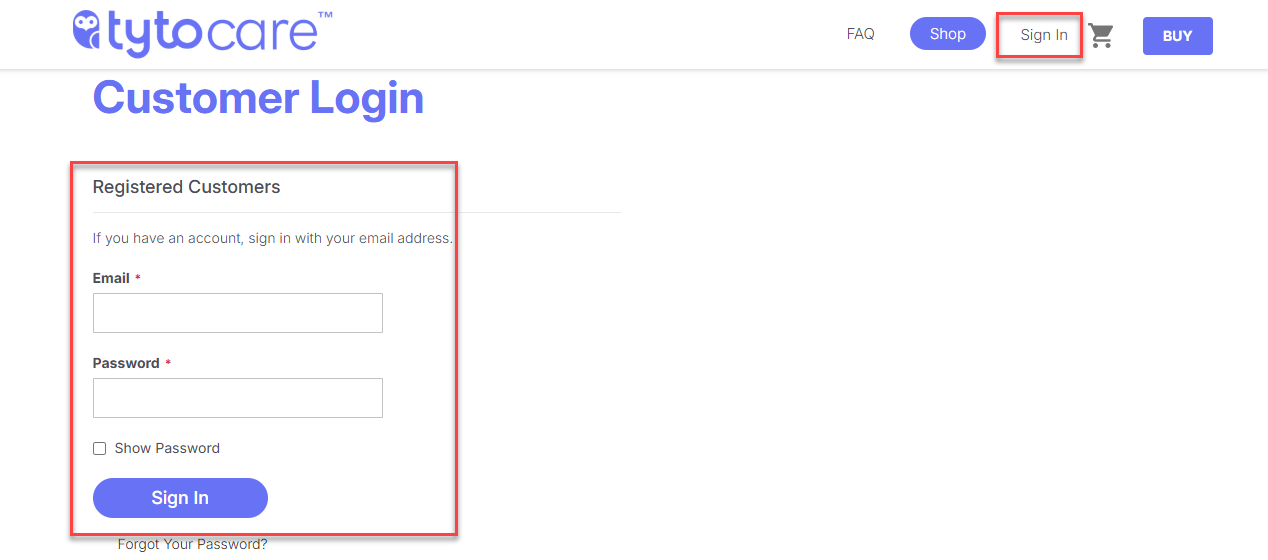
To sign in, click the Sign In option and enter your Email and Password.
Step 2
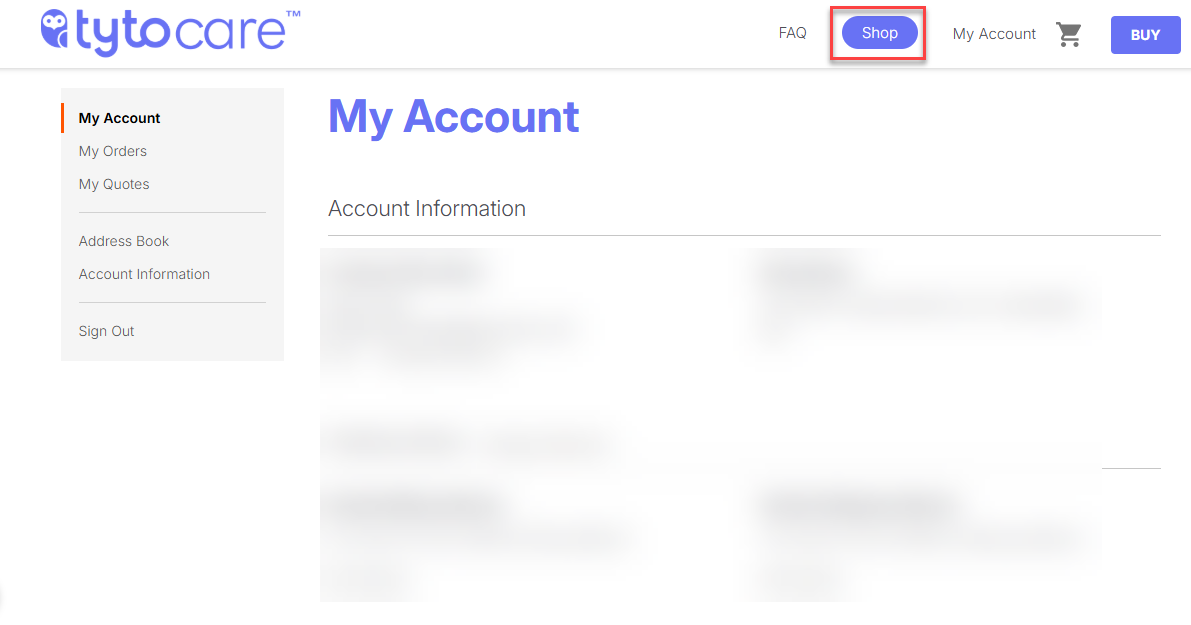
Click on the Shop option to make a purchase.
Step 3
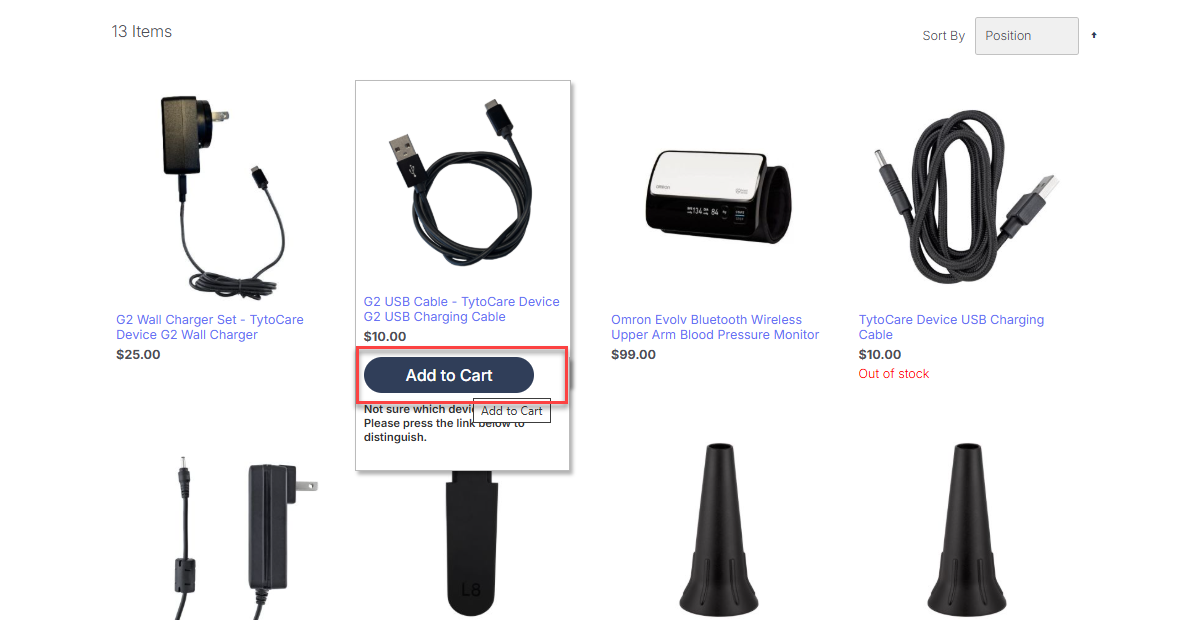
Select Add to Cart to add the item to your purchase
Step 4
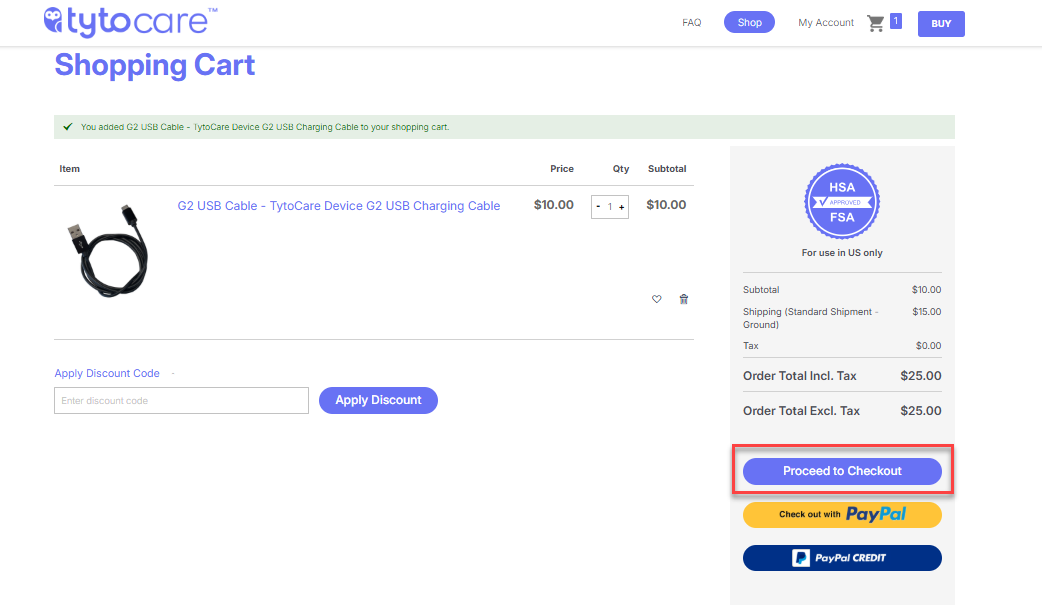
Once you have finished adding items to your cart, click Proceed to Check Out
Step 5
Enter you required information, including your shipping details
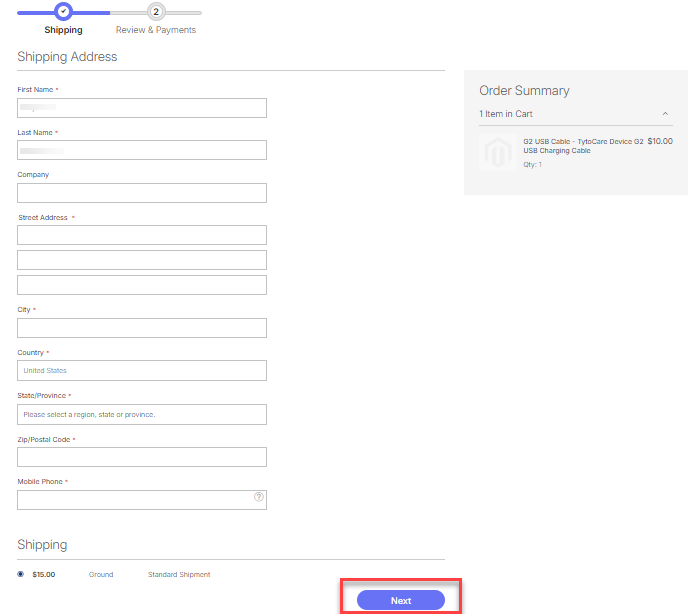
- Check the box if your billing and shipping addresses are the same. If not, enter your billing address separately.
Step 6
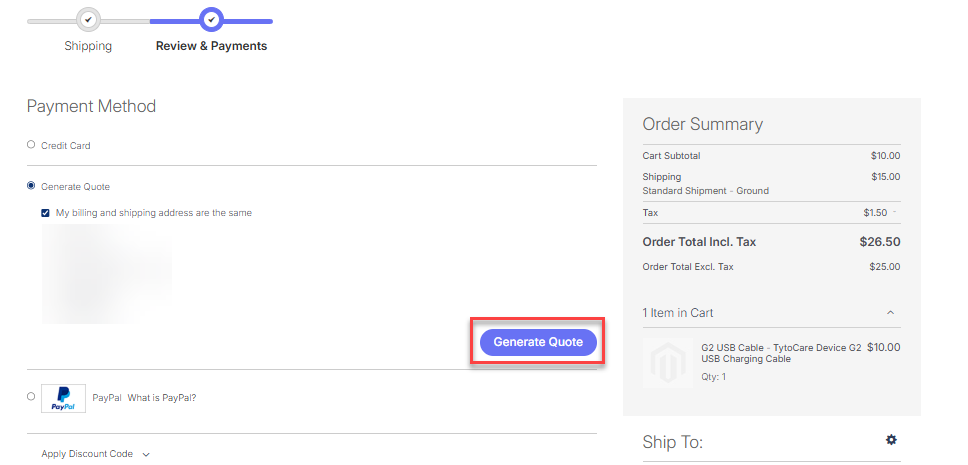
Click on Generate Quote.
Step 7
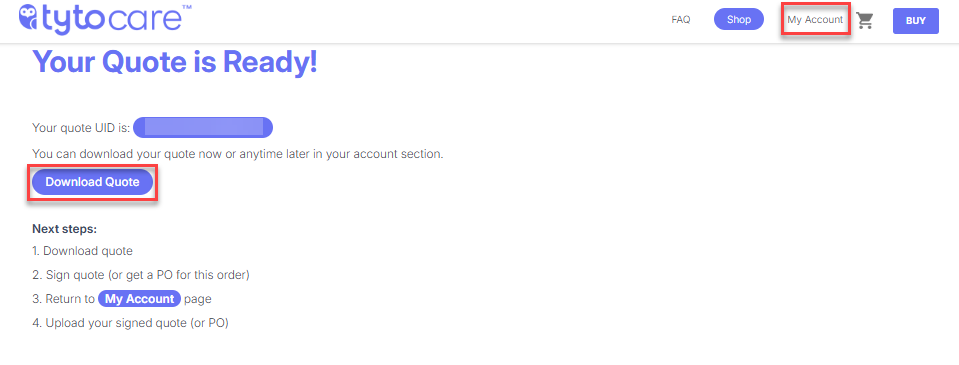
Click Download Quotes to download a copy of the quote and sign it, then go back to My Account
Step 8
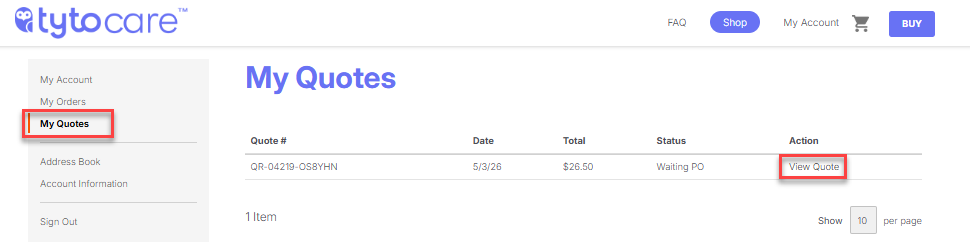
In My Quotes, select View Quotes to upload the signed copy of the quote
Step 9
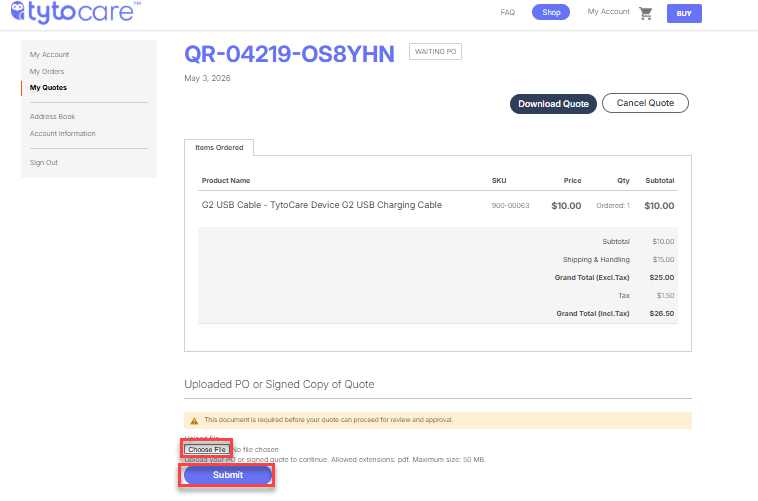
Click Choose File to upload the signed copy of the quote, then click Submit.
Step 10
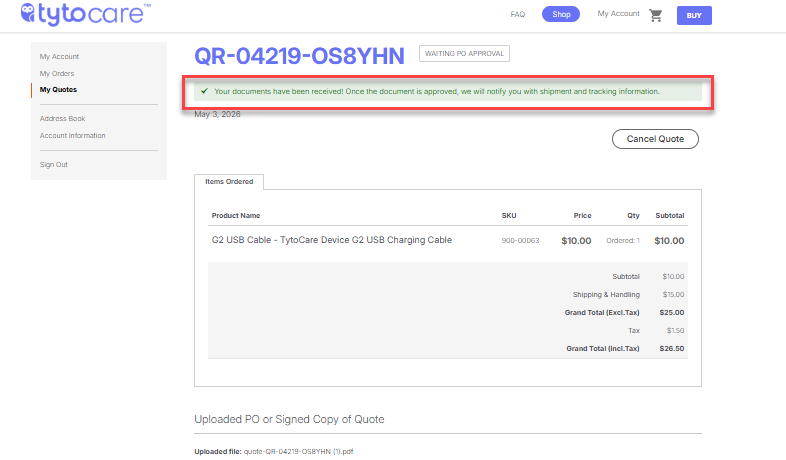
After submitting the signed copy, a message will appear confirming that the order has been submitted and is awaiting PO approval.