Contact Support

MemorialCare – Quickstart Guide


St. Luke's

Get Started Now!
Set up your TytoHome

This guide provides a step-by-step walkthrough for setting up TytoHome for the first time.
 
Before you get started, charge your TytoDevice and locate your Wi-Fi password.
Step 1: Download the Tytocare app
  1. NOTE: DO NOT create a TytoCare account in the TytoCare App. It will be created automatically via your MyChart account.
  2. Download the TytoCare app via Apple or Android.
Step 1: Complete Required Activation
  1. If it’s your first time, please download MyChart via Apple or Android, then choose MemorialCare as your organization.
  2. If you have an existing account, please login with your MemorialCare MyChart account.
 
Step 2: Launch your MemorialCare MyChart App

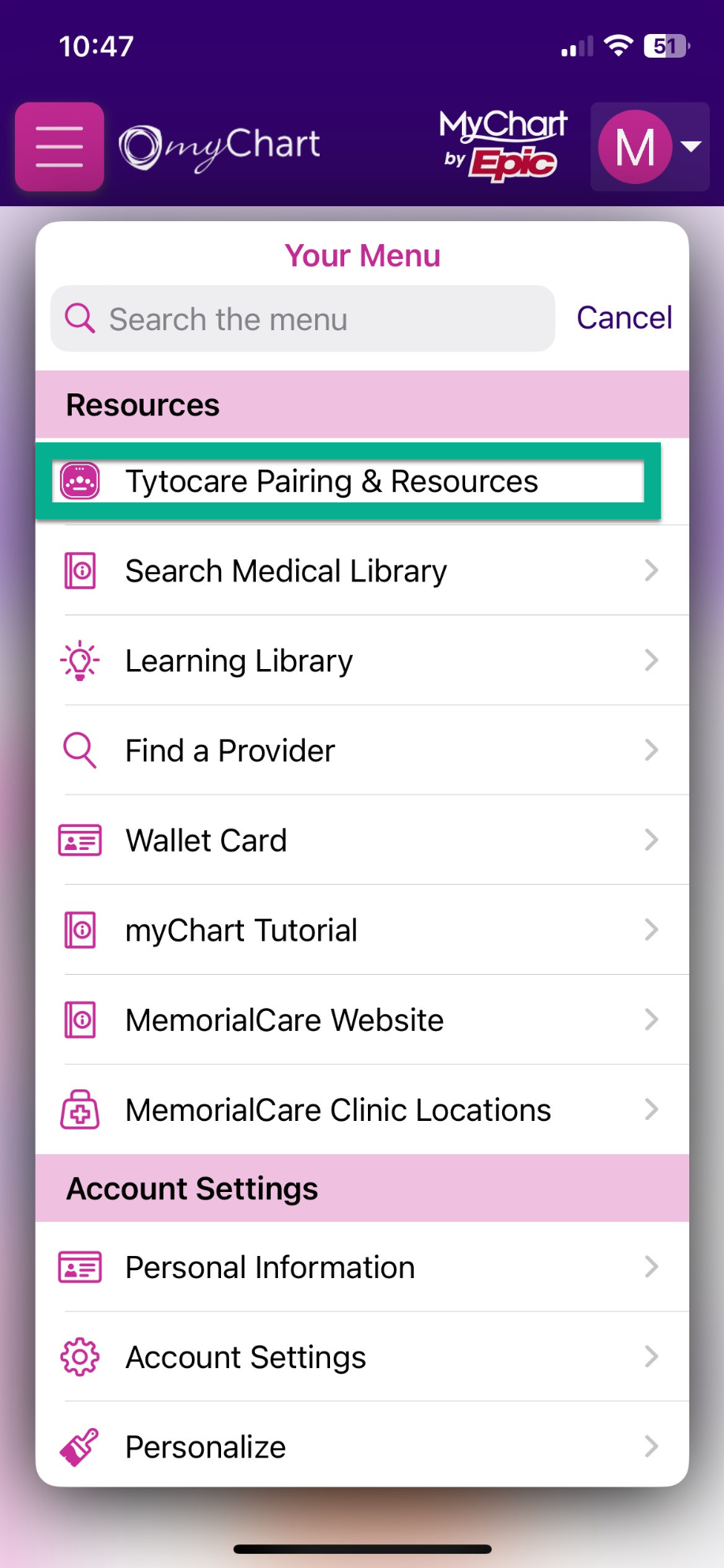
Log into your MemorialCare MyChart account. Then go to Menu and select TytoHome Pairing & Resources to launch the TytoCare app.


Step 3: Pair your TytoCare device

Pair your Tyto device either via Wi-Fi or Hotspot (Android or iOS).

TytoCare App and Device Pairing Using Wi-Fi

TytoCare App and Device Pairing Using Mobile Hotspot on iOS

TytoCare App and Device Pairing Using Mobile Hotspot on Android

NOTE: During the initial pairing process, your TytoCare device will prompt you to download and install the latest updates.

Step 4: Complete the Welcome visit
This non-clinical practice visit helps you feel comfortable using TytoHome. Open the MyChart app, click ‘TytoCare Pairing & Resources’ and choose the ‘Start a Welcome Visit”, select a patient, then “Practice with a live trainer”. A popup will appear – start your “Welcome Visit”.
Step 1: Open the MyChart app
   

Schedule with our 24/7 urgent care provider or a primary care provider.
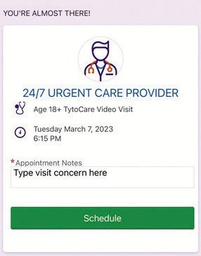
   
     
Step 2: Specify the Reason for your Visit
   

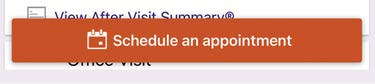
Type in your reason for the visit and tap the Schedule an appointment button.
   
     
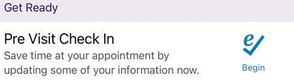
Step 3: Begin Pre-Visit Check-In
   

Begin Pre-Visit Check-In process by clicking on the eCheck-In icon.
   
     
Step 4: Appointment Confirmation
   

A MemorialCare team member from the On-Demand Virtual Urgent Care team will reach out to you via text or telephone to confirm your configuration.

     
Step 5: Begin your Visit
 

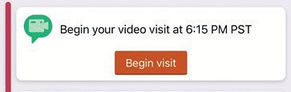
When it is time to join your visit, you can tap on the Begin Visit button on your home screen. You will then enter the waiting room where your provider will meet you and guide you through the visit using your MemorialCare Virtual Exam Kit.
     
Step 6: After Visit
 
At the conclusion of your visit, please remain on the TytoCare visit page and answer the survey questions.
 
For additional resources, please see MemorialCare MyChart FAQs page.
MyChart assistance
For inquiries related to MyChart or proxy access, please call 877-696-3622 or E-mail myChartsupport@memorialcare.org
   
 
TytoCare assistance
1-844-856-6661
support@tytocare.com
 
 
Contact Support