This guide outlines how to manage incoming clinical requests, monitor patient connectivity, and initiate live video exams directly from the Clinician Station.
1. Video Tutorial: Starting an Online Exam
To watch on YouTube: Press CTRL + Click the YouTube logo in the video window.
2. Identifying New Visit Requests
When a patient enters your waiting room, the request will appear in "My Queue". The ONLINE VISITS counter provides a real-time tally of pending patients.
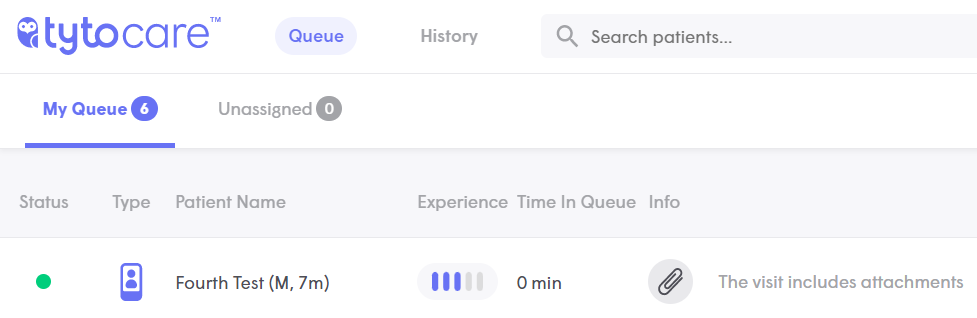
The Clinician Station displays active requests waiting for provider pick-up.
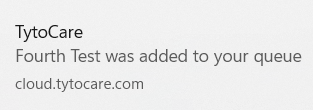
Desktop Notifications: To ensure you don't miss a patient while working in other Chrome tabs, the Clinician Station sends a desktop alert to the bottom-right of your screen.
3. Evaluating Patient Readiness
Click the patient’s name to view their Visit Info. Before connecting, you can review their primary complaint and any pre-recorded exams they have submitted.
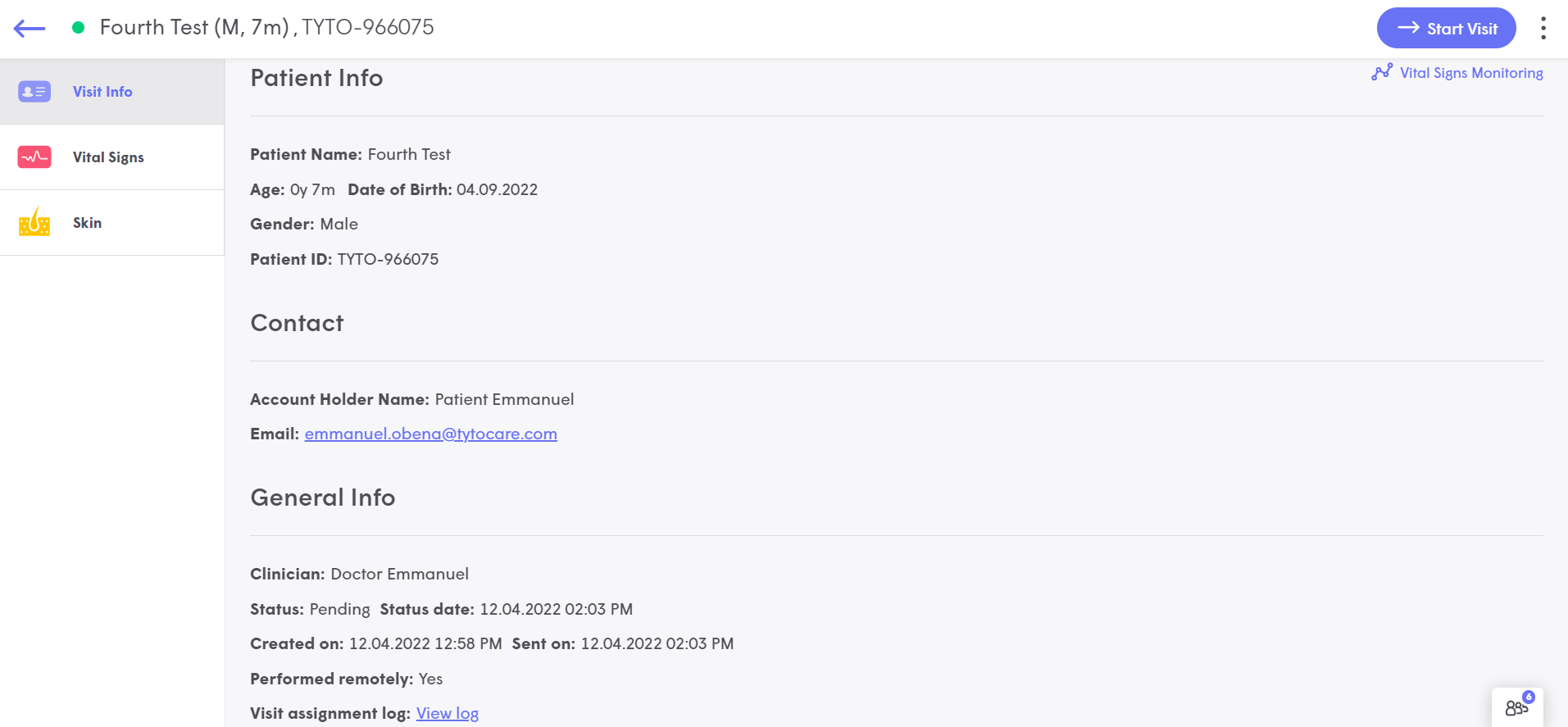
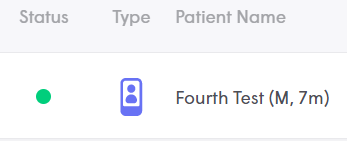
Green Indicator: The patient is active in the TytoApp and ready for the video conference.
Grey/No Indicator: The patient has closed the app. Use the NOTIFY PATIENT button to call them back to the session.
4. Starting or Canceling the Session
- Start Visit: Initiates the live WebRTC video stream. Only available if the patient is online.
- Notify Patient: Sends a high-priority push notification to the patient's device if they have gone offline.
- Cancel Visit: If a patient is unresponsive, select this option from the three-dot menu (...) to clear the request from your queue.