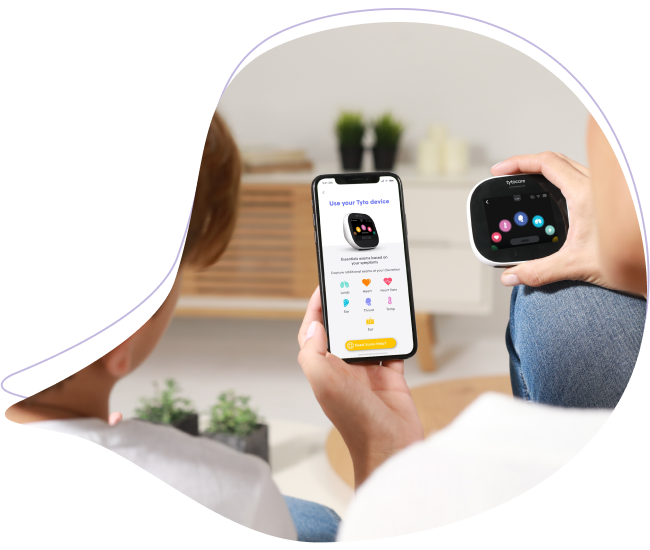
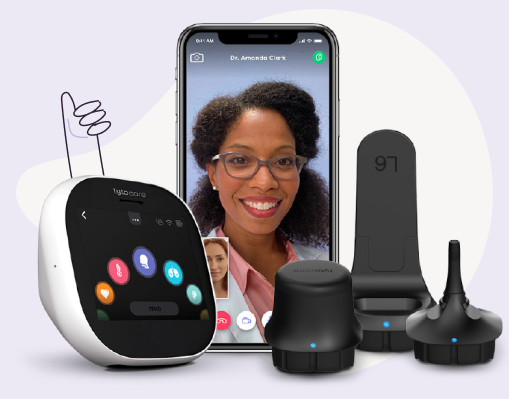
There are 2 ways to Share Your Exam with your Trusted Contacts such as a Family Member, your Family Doctor, or a Child's Pediatrician.
Please note: Depending on your organization's configuration, you might not be able to take advantage of this feature.
Method 1: Sharing Exam Immediately After Recording
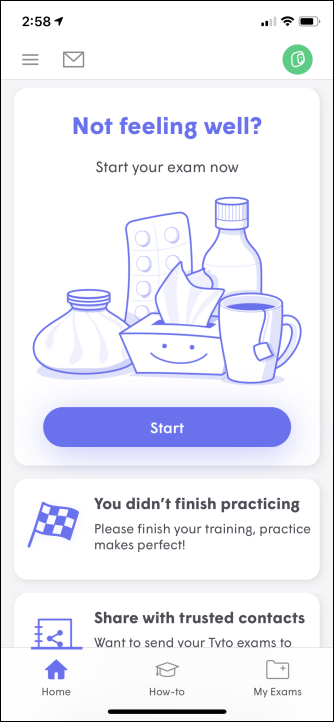
- On the TytoCare app Home Screen, select Start.
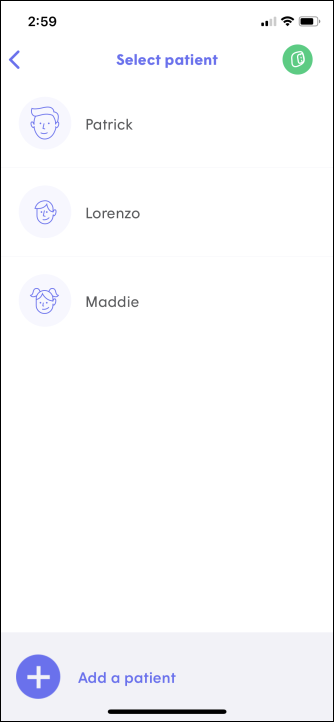
- Select the patient for whom you wish to conduct the Tyto Exam.
- Select Exam and Forward.
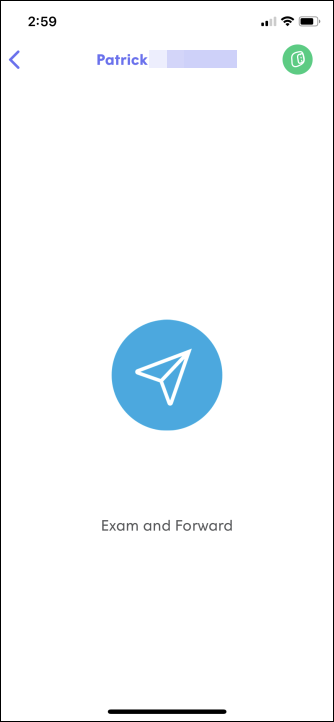
- Choose the appropriate Symptoms information.
- On your Tyto Device, perform the Exams suggested by the App or specific exams you would like to capture.
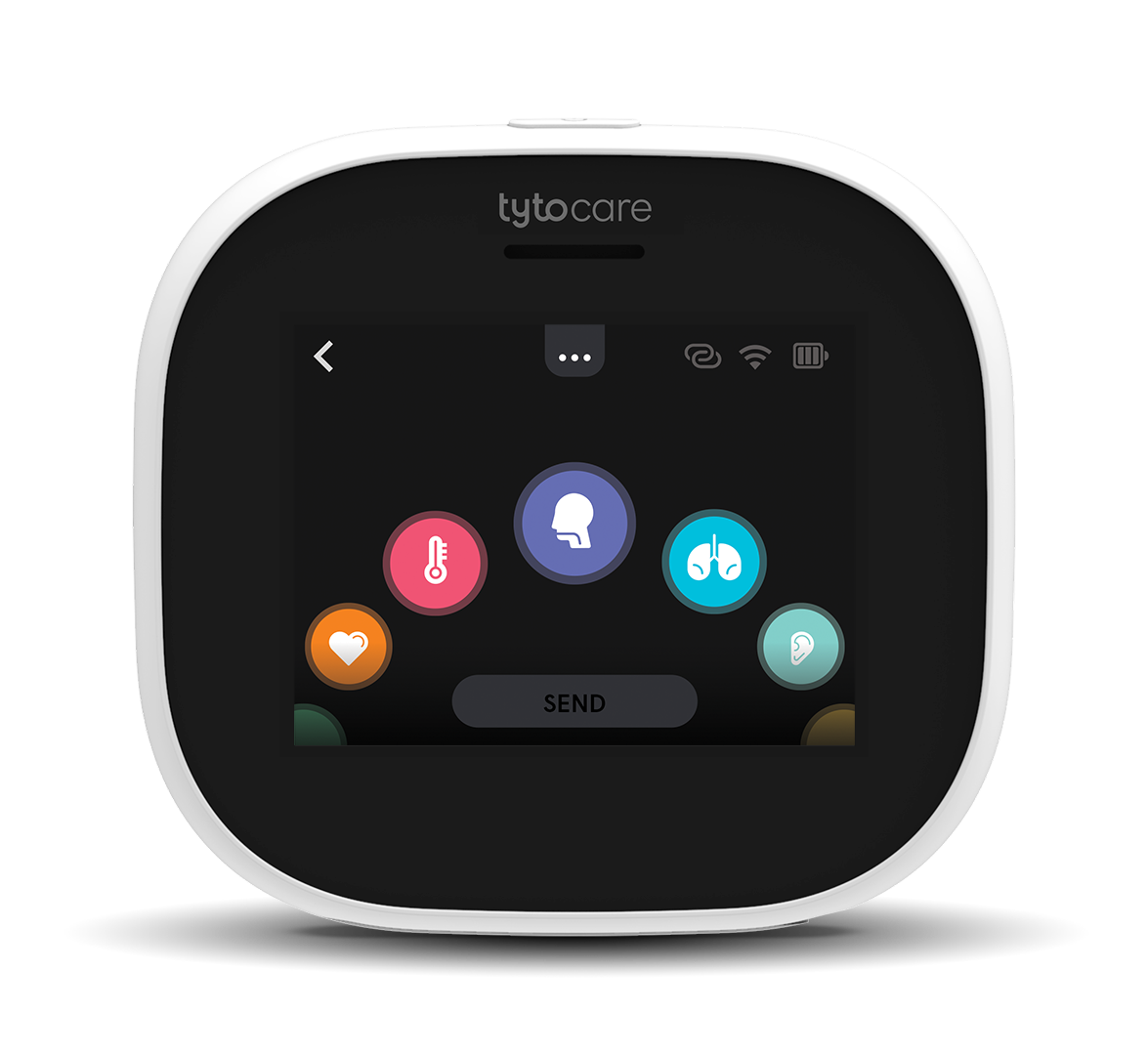
- Record a quick Video to include as part of the Exam Data.
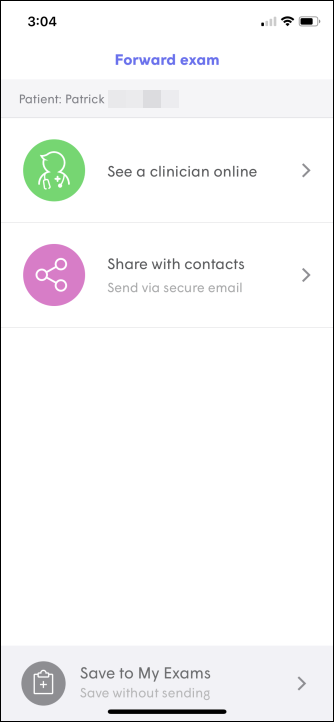
- Select Share with contacts.
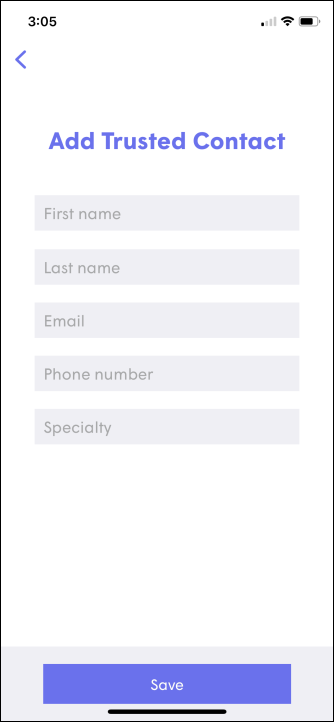
- Enter the Contact Information you would like to share the exam with, then tap Save.
- Select Share Exam.
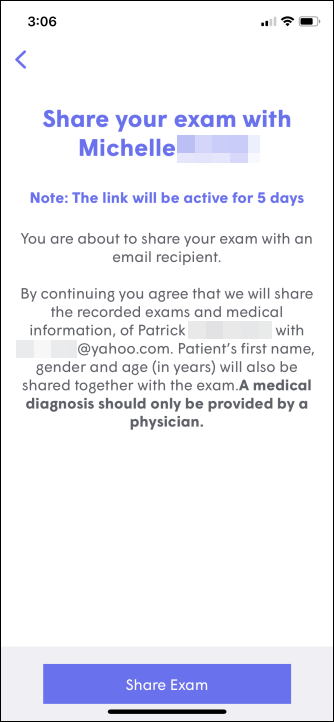
- The person receiving the Exam will receive an email with steps on how to open it. Please visit our knowledge article on how to view the exam: How to View a Shared Exam.
Method 2: Sharing a Saved Exam from My Exams
- Select My Exams in the bottom right corner of your TytoCare app Home Screen.
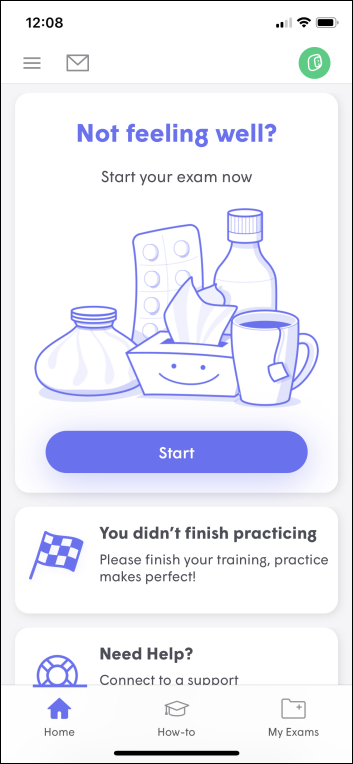
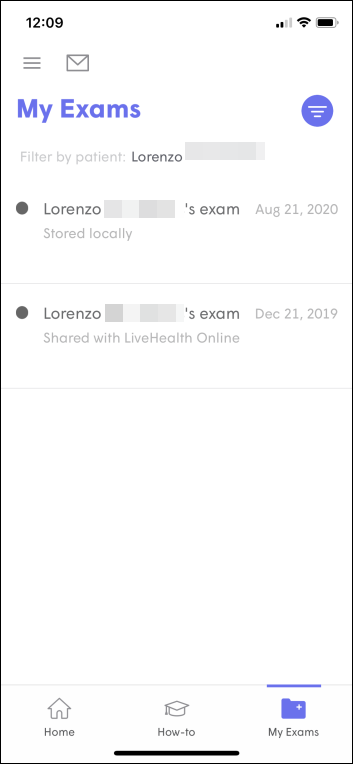
- Select a previously captured exam.
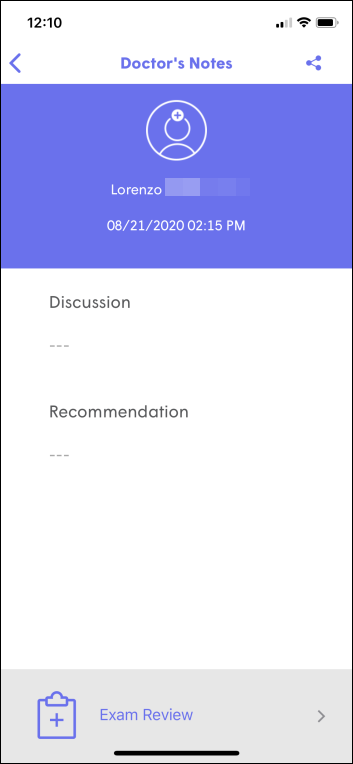
- Select Share Exam on the top right.
- Select or Add a trusted contact.
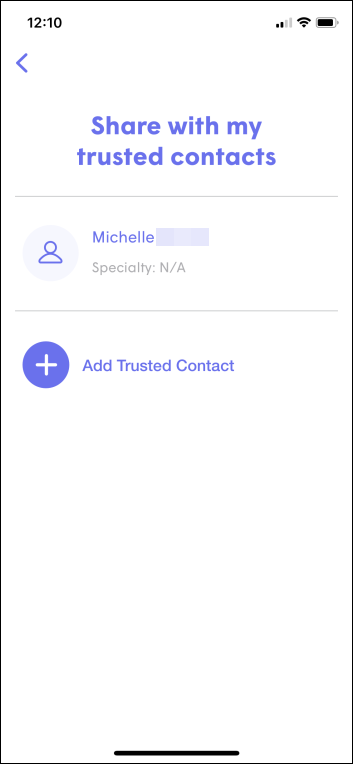
- Select Share Exam.
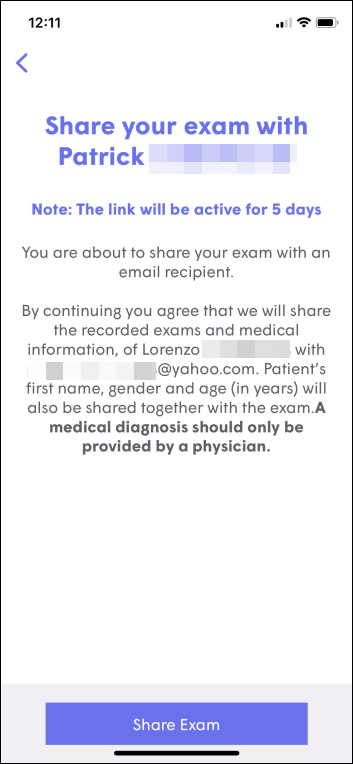
- The person receiving the Exam will receive an email with steps on how to open it. Please visit our knowledge article on how to view the exam: How to View a Shared Exam.
If you have any questions, please contact TytoCare support by e-mailing us at support@tytocare.com or by calling us at 1-866-971-8986 and select option 2 for support.