Overview
If you are connecting your TytoCare device to a Wi-Fi network that is not password-protected (an open network), you can still complete the pairing process using a QR code. This is common in some public or specialized facility environments.
Pairing Flow
-
Step 1: Open Pairing Menu
In the TytoCare App, tap the Menu icon (three lines) and select Pair Tyto Device.
-
Step 2: Select Your Network
Choose the specific Wi-Fi network you wish to connect to from the list of available networks.
-
Step 3: Bypass Password Entry
Instead of entering a password, look for the option that says "Wi-Fi not password protected?". Tap this link and then select Next.
-
Step 4: Scan the QR Code
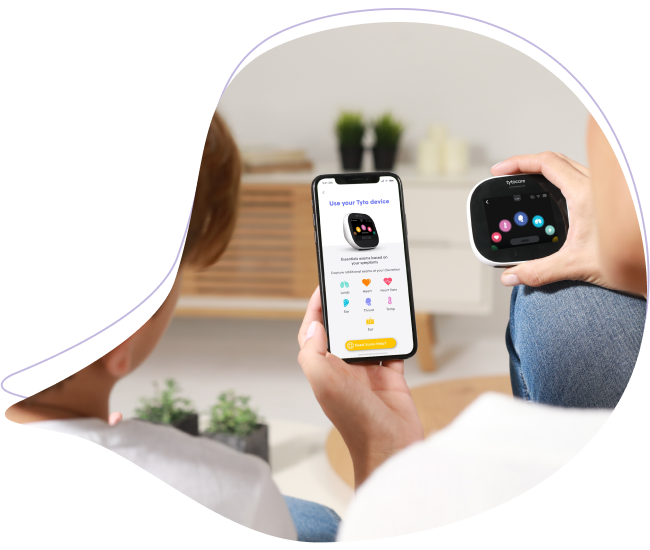
A QR code will be generated on your mobile app. Point the TytoCare device camera at your phone screen to scan the code and finalize the connection.
Important Considerations
- Security: Using non-password protected networks may carry security risks. Whenever possible, use a secure, password-protected 2.4 GHz Wi-Fi network or a personal hotspot.
- Version Compatibility: Ensure your device is updated to the latest version to maintain a stable connection on open networks.