DOC PN: 701-00077 A02
PORTAL DOC PN: 760-00724
Support Models: 500-00020; 500-00026; 500-00034; 500-00035
Last updated: July 2026
Welcome to TytoCare
This guide will walk you through:
- What's in the box
- Setting up the TytoClinic Mobile
- Configuring the iPad
- Connecting the TytoPro kit to your TytoClinic
1. What's in the box?
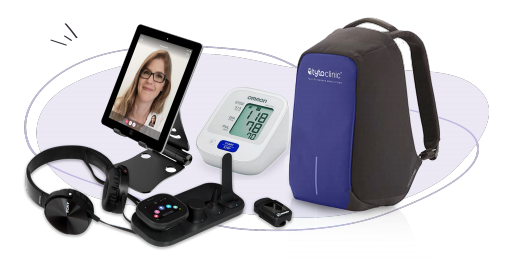
- Traveling Bag
- Adjustable Tablet Stand
- Pulse Oximeter (with 4 batteries)
- Blood Pressure Monitor (with Omron Small D-Ring Cuff)
- iPad (Optional)
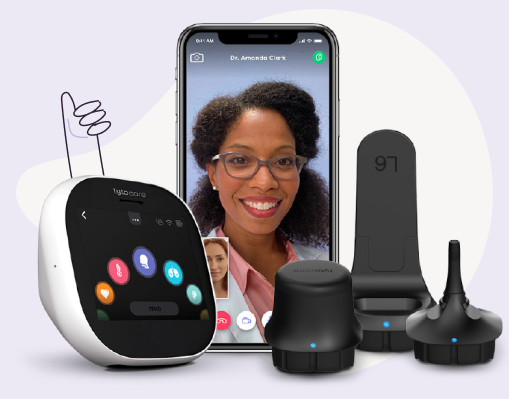
- TytoPro Kit
- Earphones
2. Setting up your TytoClinic Mobile
Step 1: Unpack carrying bag
Open the shipping box in which the TytoClinic Mobile carrying bag was delivered and remove the bag. Open the bag and take out the iPad box.
Step 2: Prepare iPad and TytoPro
Remove the iPad and TytoPro from their respective boxes. Place the blood pressure unit, cuff, SpO2, and earphones into the backpack. Store the original equipment boxes in a secure place for support and warranty purposes.
3. Configure the iPad
The first time you turn on the iPad, you will be prompted to configure it. Ensure you use the settings provided below. You will only need to do this once.
- Wi-Fi Connection: Turn on the iPad and connect it to your organization's Wi-Fi network.
- Apple ID: Sign in to your iPad using your organization's Apple ID.
- Location Services: Navigate to Settings > Privacy > Location Services and turn them Off.
- Siri & Search: Disable all Siri options and settings.
- FaceTime & Messages: Navigate to Settings and disable both FaceTime and iMessage.
- App Setup: Download the "TytoCare" App from the App Store and add it to the Quick Launch Bar for easy access.
Apple Reseller ID Setup (If Applicable)
If required for your organization, follow these steps to add your Apple Reseller ID (located on the iPad box) via Apple School Manager:
- Sign in to Apple School Manager with an Administrator account.
- Click Settings at the bottom of the sidebar.
- Click Device Management Settings under Organization Settings.
- Click Edit next to Customer Numbers, enter your Reseller ID, and click Done.
4. Connecting TytoPro to TytoClinic
Follow the instructions in the TytoPro Quick Start Guide to get started.