DOC PN: 702-00043 A01
Support Models: 500-00021; 500-00022 ;500-00023 ;500-00024 ; 500-00025
Last updated:March 2026
1. Universal tablet Rework for iPad Gen 9 (10.2)
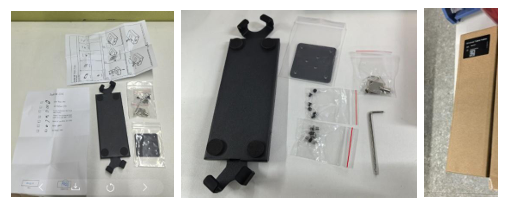
Use the designated key to unlock and open the enclosure cover, then carefully remove the iPad.
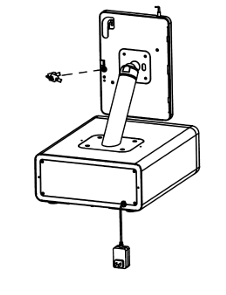
Disconnect the USB Lightning cable from the iPad.
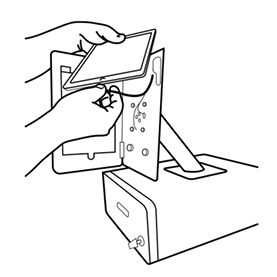
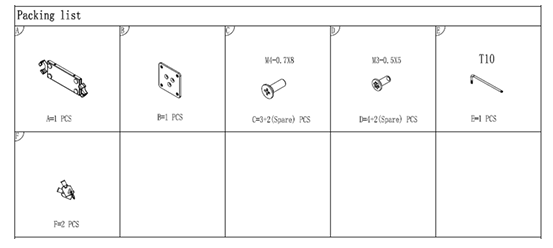
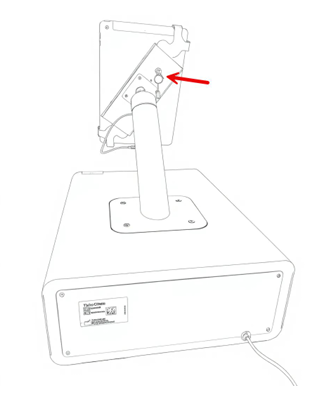
Remove the three fasteners using a Philips screwdriver.
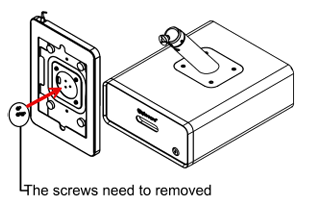
Mount the tablet bracket onto the stand using three fasteners.
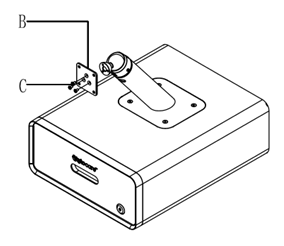
Attach the universal holder to the bracket using four fasteners.
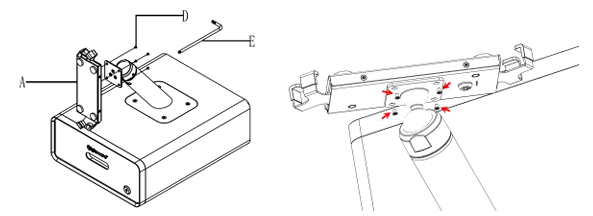
2. Secure iPad within frame
Hold the two indicated areas with both hands and rotate the holder 45°counterclockwise until it aligns with the blue dotted line.
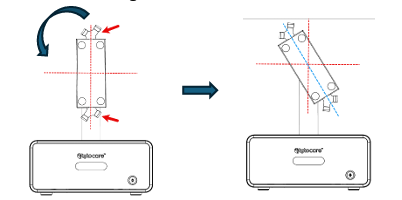
Take the holder and open it using the supplied Key (Insert the key and rotate clockwise.
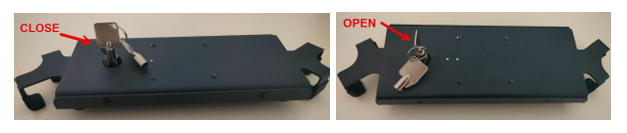
Pull the Knobs in the direction indicated by the arrows (marked 1 and 2) and place the iPad into position.
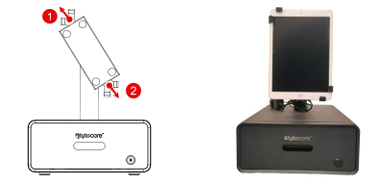
Lock the IPAD in place using the dedicated key
3. Configure the iPad
The first time you turn on the iPad, you will be prompted to configure it. Ensure you use the settings provided below.
- Initial Setup: Tap "Next" and select "English" and "United States".
- Wi-Fi Connection: Connect to the newly created Wi-Fi network on the iPad.
- Touch ID & Passcode: Select "Set Up touch ID later" and "Don't Use Passcode".
- Apps & Data: Select "Set Up as New iPad".
- Apple ID: Choose "Set Up Later in Settings" and then "Don't Use".
Additional information
TytoClinic station power inlet/outlets:
- Outlet of frame: USB Type C for charging the iPad
- Outlet inside drawer: USB type C for charging the TytoPro device