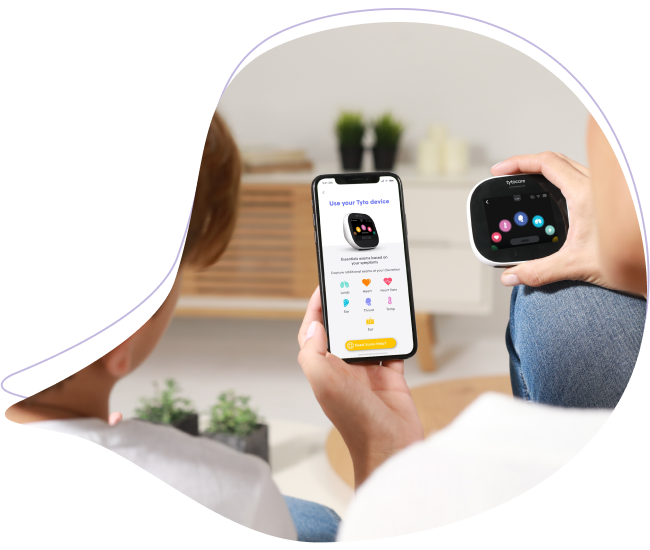
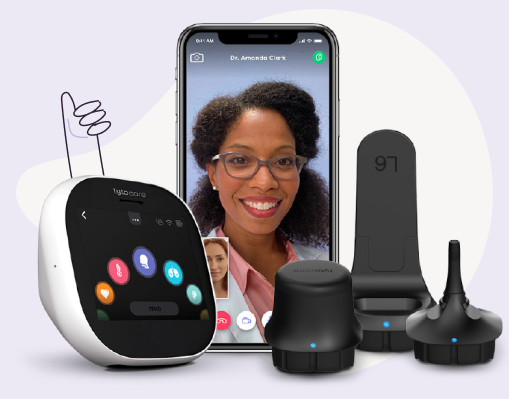
If your TytoHome or TytoPro kit includes the Omron HEM-9200T Blood Pressure Monitor, follow these instructions to pair it with your TytoCare App via Bluetooth.
Initial Setup
- Enable Bluetooth: Activate Bluetooth on your smartphone or tablet where the TytoCare App is installed.
- Login: Open the TytoCare App and sign in to your account.
- Navigate to Pairing: Tap the Menu (three lines) in the upper-left and select Pair External Devices. Choose BP Monitor.
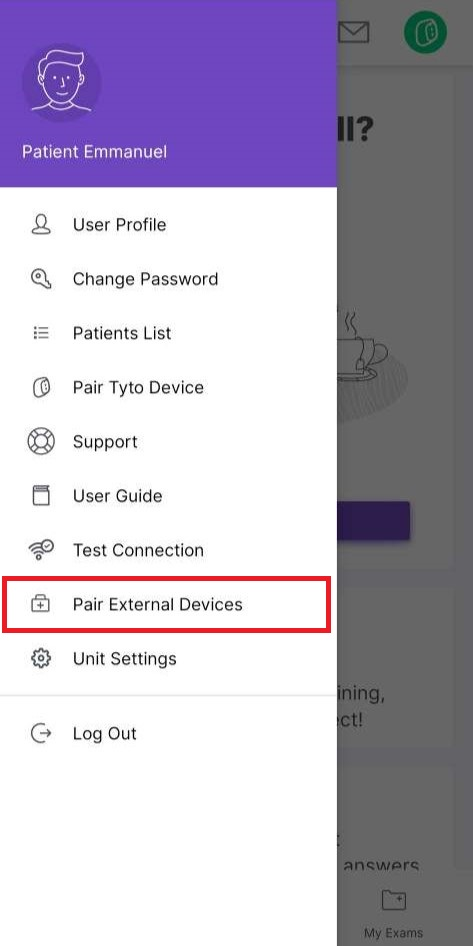
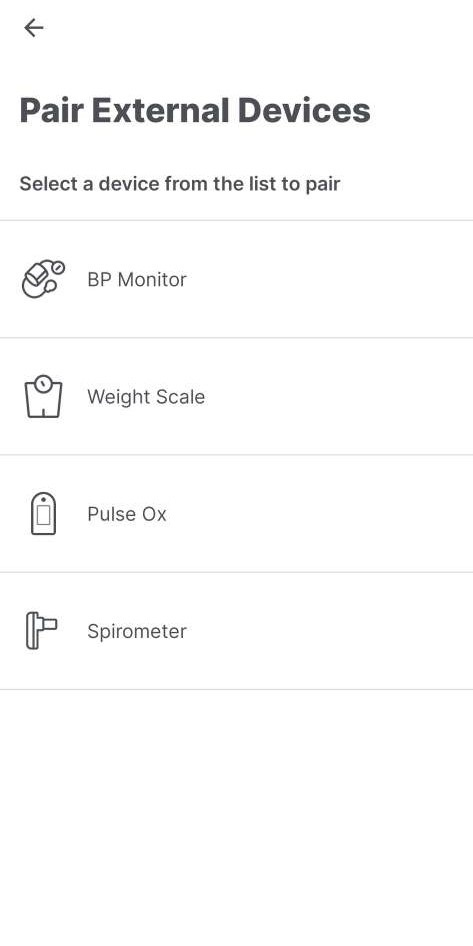
*Note: If Bluetooth is disabled, a pop-up prompt will appear to help you enable it.
Pairing the Monitor
- Power Check: Insert or reinsert the batteries into the Omron HEM-9200T unit.
- Initiate Pairing: Press the Start button on the front of the monitor. A capital "P" should appear on the device screen.
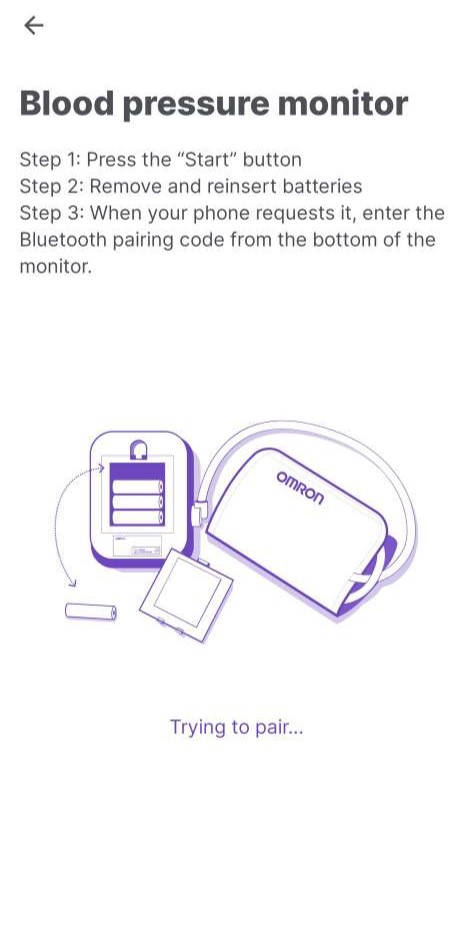
- Enter PIN: When prompted by the TytoCare App, enter the 6-digit PIN code located on the rating label at the bottom of the blood pressure monitor and tap submit.
- Confirm Success: The App will display a "Pairing Successful" message.
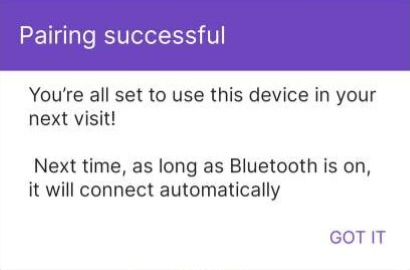
Congratulations! Your Omron HEM-9200T is now paired. The App will automatically connect to the monitor whenever it is in range and powered on.